 Simple Money Tools
Written guide
Getting started with the Budget Tracker
Download the spreadsheet, enable macros/editing if Excel asks, and enter your first month of income and outgoings.
View TutorialTutorials & instructions
Written guides and video walkthroughs, written in plain English. Search or filter to find what you need.
Download the spreadsheet, enable macros/editing if Excel asks, and enter your first month of income and outgoings.
View TutorialWhat "essential vs non-essential" means, how the annual totals are calculated, and how to read the charts.
View TutorialAdd the extension from the Chrome Web Store, choose a background style, and pick your bookmark folder.
View TutorialAdd up to 10 crypto or stock tickers, reorder them, and remove ones you no longer track.
View TutorialVideo walkthroughs of the free tools on the Simple Money Tools YouTube channel — new videos added regularly.
View Tutorial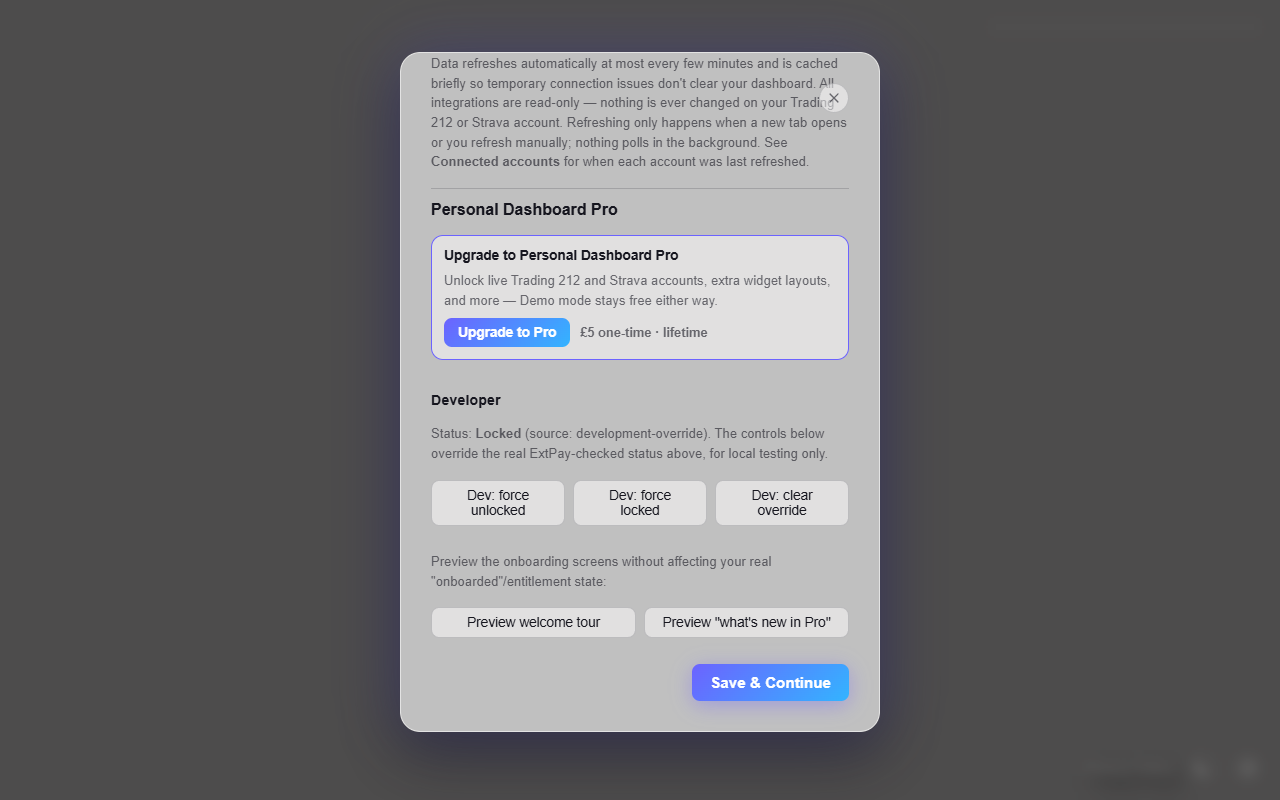 Written guide
Where the £5 one-time upgrade lives inside the extension, and what it unlocks.
View Tutorial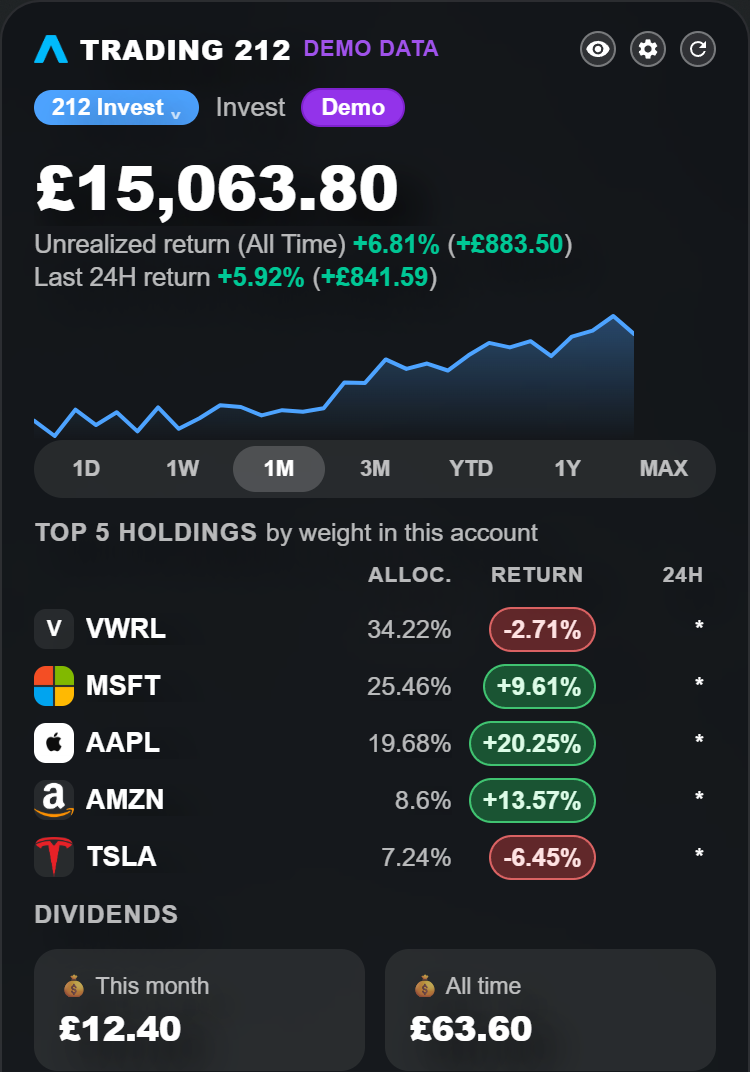 Written guide
Generate a read-only API key with the right scopes, and paste it into Connected accounts.
View Tutorial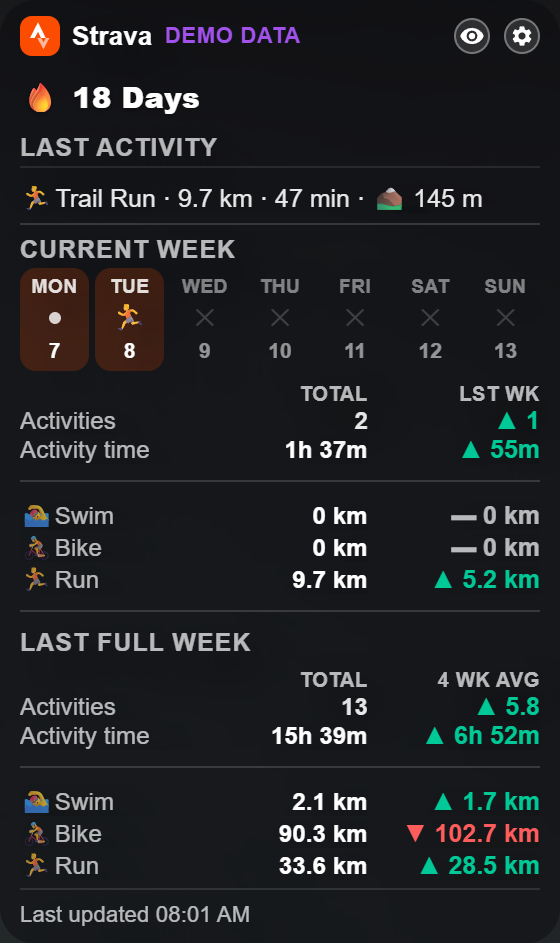 Written guide
Register your own free Strava app, then authorise read-only access from the extension.
View TutorialNo tutorials match your search or filter yet. Try clearing the search box.
Troubleshooting
This usually means a row was deleted rather than cleared. Undo (Ctrl+Z) if it just happened, or re-download a fresh copy and re-enter your figures.
Check chrome://extensions to confirm Personal Dashboard is enabled, and check Chrome's own new-tab setting hasn't been overridden by another extension.
Double-check the symbol is correct and that you're under the 10-ticker limit on the free version. Some very new or low-volume assets may not be supported.
Get in touch through the contact page and select "Bug report" or "Tool support" — include which tool and what you were doing when it happened.
FAQ
Yes. The Budget Tracker is free to download and use, with no account or sign-up required.
No — install it from the Chrome Web Store and it works immediately. Nothing is required to connect for the free features.
The Pro update is with Chrome for review. It is an upgrade inside the existing extension rather than a separate install, and costs £5 once — no subscription. Install the free extension now and the upgrade appears in Settings when it lands.
No. The integration is read-only: it reads the portfolio information Trading 212 exposes through its API, and cannot place trades, move funds or change your account. You generate the API key yourself and choose its scopes — the two trading-capable ones stay switched off. See the Trading 212 guide and the Pro privacy policy.
Personal Dashboard is built for Google Chrome and other Chromium-based browsers (e.g. Edge, Brave) that support the Chrome Web Store.
Use the contact form and choose "Bug report" from the topic list, or email the support address listed there.